Act now to save up to 60% on Cloud Hosting. Hurry, sale ends soon!
  • 00 Days
  • 00 Hours
  • 00 Minutes
  • 00 Seconds

How to Forcefully Update or Reinstall a WordPress Plugin

The WordPress plugin is not working correctly, or you want to reinstall it without losing data or removing the plugin.

You can do this with both active and inactive plugins.


1. Log in to the WordPress dashboard.

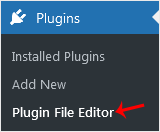
2. From the Dashboard menu, go to Plugins and click on Plugin File Editor.
WordPress-plugin-file-editor.gif


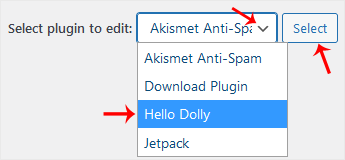
3. From the drop-down menu of Select plugin to edit, choose the plugin and click on Select.
WordPress-plugin-file-editor-menu.gif


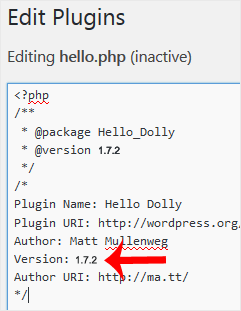
4. In the file editor, locate the version line:
Version: 1.7.2

Change it to:
Version: 1.7.1

Only change the version from a higher to a lower number.
wp-plugin-edit-hellodolly-version.gif


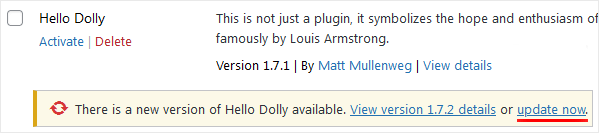
5. Scroll down and click on Update File. Then go back to the Installed Plugins list. There should be an update for the plugin you edited. Click on Update now.
wp-plugin-update-hellodolly.gif


You have forcefully updated/reinstalled the plugin without losing data.

  • 0 Users Found This Useful
Was this answer helpful?

Related Articles

How to Delete Categories in WordPress

If you want to remove the WordPress category, then follow this instruction:1. Log in to the...

How to Install a WordPress Plugin

WordPress plugins are very useful. You can easily install a plugin from the WordPress...

How to Delete a WordPress Theme

You should remove unused themes. It is considered good practice to protect your WordPress website...

How do you set the usable memory limit in WordPress?

WordPress is developed based on the PHP language, and like all PHP applications or scripts, it...

How to Access the WordPress Admin Dashboard?

WordPress is an easy to work with CMS software. To access a WordPress account, please follow...